We now use Stripe for card payments on our website and it takes only a few simple steps to add (or re-add) a card through our Company Formation Portal.

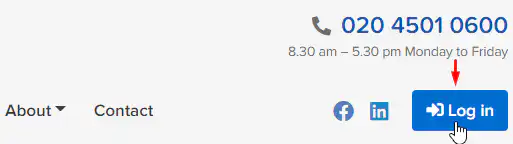
1. Log into your account through the Uniwide Formations website.
Go to our homepage at www.uniwide.co.uk.
– For desktop: click the “Log in” button at the top right corner of the page.
– For mobile: expand the “Menu” by clicking on it and then click the “Log in” button.
After that, enter the e-mail and password associated with your account on our website.
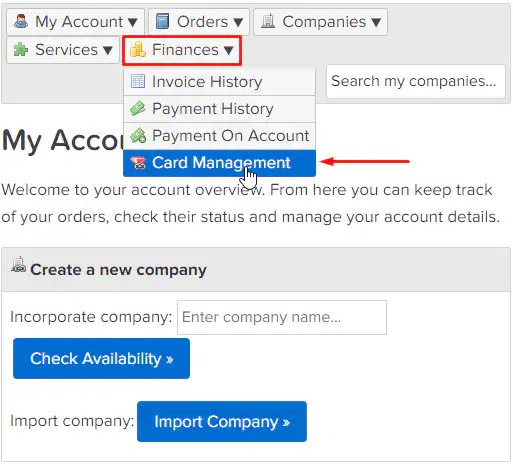
2. Go to your account sub-menu. Select “Finances”. Click on “Card Management”.
3. To add a new card click on the “Setup Payment Authority” button.

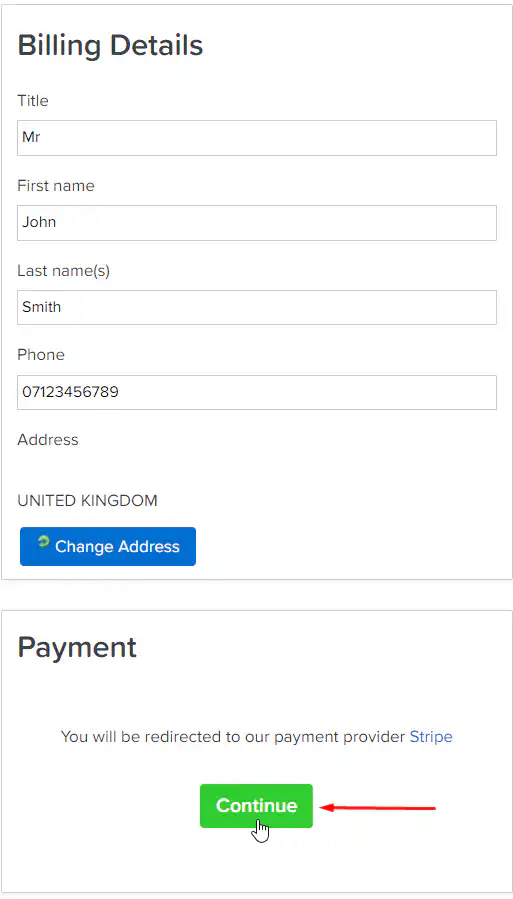
4. This will display your Billing Details. Check and, if necessary, correct them and then click on the “Continue” button.
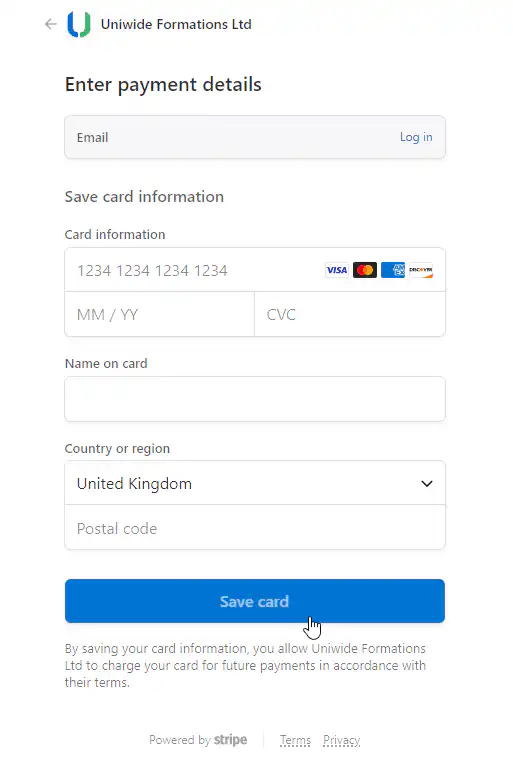
5. You will be forwarded to our payment provider, Stripe. Enter your card details, as requested, and then click “Save Card”.
Your card details will then be securely stored on our system. You can now use this card for future payments on our site for things such as renewal of our services, postal charges and new orders.